Tidy24 pricing is composable. You can start with one simple calculation, combine several property and service rules, or offer prepared time packages. The right setup depends on how you quote jobs to customers.
The two questions every model answers
For each booking, separate these two decisions:
- What should the customer pay? This comes from a base amount, property charges, packages, extras, and optional condition markup.
- How much calendar time is needed? This comes from the base duration plus the minutes contributed by rooms, area, packages, and services.
A setting can affect duration without adding a charge. For example, room counts may make a job longer even when the price per room is zero.
Start in the location’s Cleaning settings
Open Locations, select the location you are configuring, and open the Cleaning settings tab. This is the feature gate for the booking flow: the switches here decide which questions and pricing paths customers can see for this location.
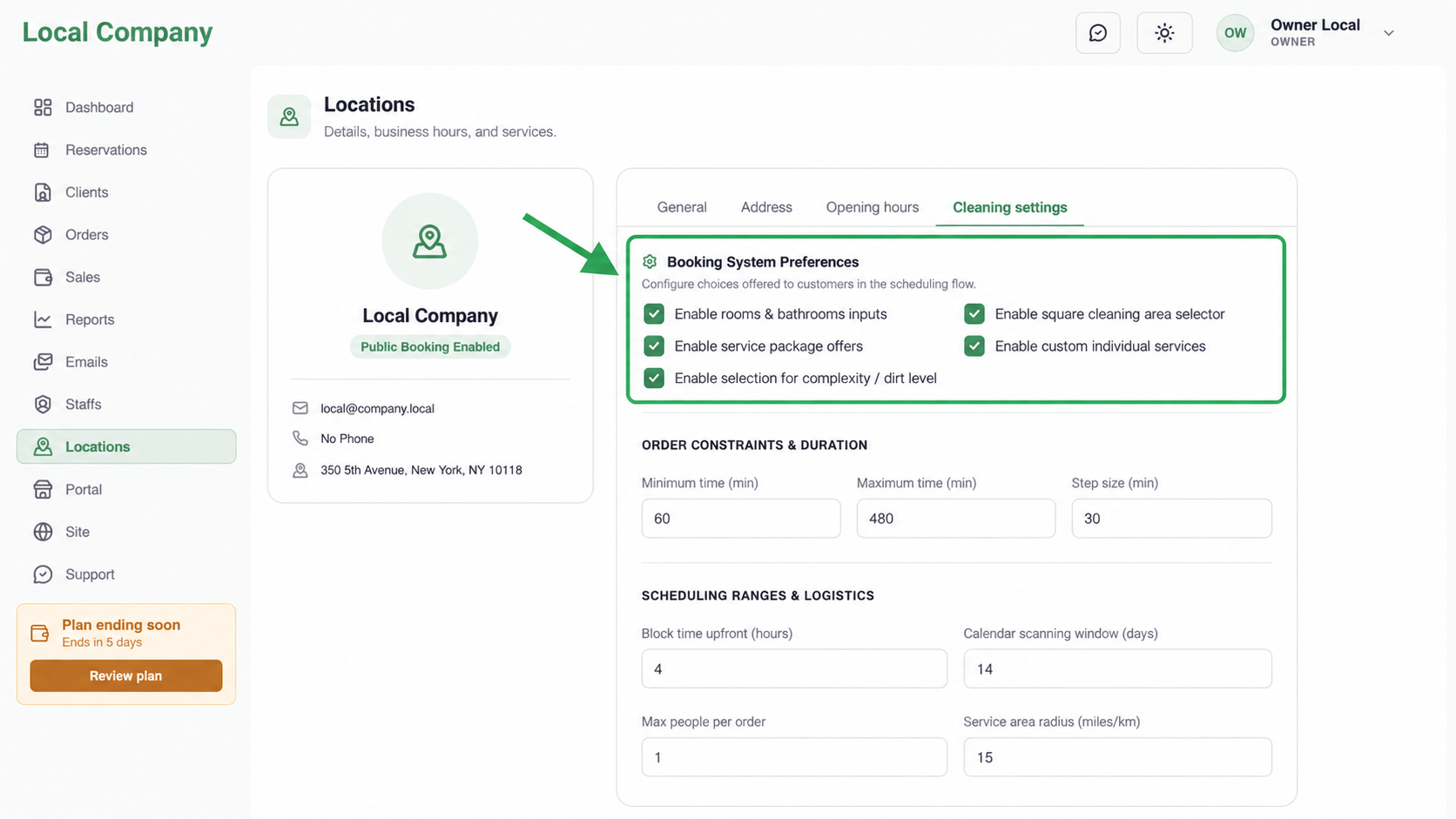
What to enable
- Enable rooms & bathrooms inputs: show room and bathroom counts. Turn this on when size by count affects price or duration.
- Enable square cleaning area selector: ask for sqft or sqm. Turn this on when measured area is more reliable than room count.
- Enable service package offers: let customers choose prepared Time Packs with their own price and duration.
- Enable custom individual services: show optional extras. Enable this only when you have service categories and customer-facing services ready.
- Enable selection for complexity / dirt level: let customers choose a condition that applies a percentage to the base price.
What to leave off
Leave a switch off when the location does not use that input. A disabled option is not a cheaper version of the model—it removes the question from the customer flow. Start with the smallest set that matches your quote.
Set the order constraints
Use Minimum time, Maximum time, and Step size to control the base booking window. The scheduling fields below control how far ahead customers can book, how many people can be on an order, and how far from the location you serve. These values affect availability even when the price model is unchanged.
Save before opening the detailed cards
Select Save Changes on the location. Only then open Reservations → Cleaning Settings to enter the actual prices, minutes, packages, services, or condition percentages. The detailed cards configure values; the location switches decide whether those values are used in the booking flow.
Keep the customer choice simple
Reminder: the more pricing options you expose, the harder it becomes for a customer to understand what to choose. A complex combination can increase hesitation, create abandoned bookings, and negatively affect conversion. Enable only the inputs that materially improve the quote, use clear labels, and prefer a small number of understandable choices over every possible adjustment.
Simple setups
Base setup only
Use the default time-driven setup when most jobs start from one standard workflow. This is the easiest option to launch and maintain.
Time packs only
Use Time Packs when customers choose prepared offers such as “2-hour cleaning” or “deep clean — 4 hours”. Each pack carries its own price and duration.
Property-based setups
Rooms and bathrooms
Use Rooms & Bathrooms when customers can describe the property reliably by count. You can charge per room and per bathroom and add separate minutes for each.
Square area
Use Square Area when floor area is a better predictor of effort than room count. Choose the unit, then set the price and minutes per square foot or square meter.
Combined setups
These are valid examples of combinations:
- Rooms + Condition Markup: price by rooms, then charge more for heavy dirt or a more complex job.
- Square Area + Individual Services: calculate the base by floor area, then let customers add oven, refrigerator, or other extras.
- Rooms + Bathrooms + Individual Services: price the property by counts and add optional work on top.
- Base setup + Time Pack + Individual Services: offer a prepared package while still allowing selected extras.
- All options together: combine property size, condition, a package, and extras when each layer represents a real business decision and the customer can understand the final total.
You do not have to enable every option. Choose the smallest combination that matches how your team quotes and performs the work.
How to choose
- If every job starts from the same basic offer, begin with the base setup.
- If size is the main price driver, choose rooms and bathrooms or square area.
- If customers choose a prepared duration, use time packs.
- If customers can add separate work, enable individual services.
- If effort changes by condition, add Condition Markup on top of the chosen base.
Continue with a model
- Configure rooms and bathrooms pricing
- Configure square-area pricing
- Create time packs
- Add individual services
- Configure condition markup
Check the result
After configuring a model, make a test booking. Confirm both the displayed total and the available end time. If the price is correct but the calendar is wrong, review the minutes settings rather than changing the price.