Enable condition pricing when the same base job costs more at a different condition. Set clear levels and percentages: 100% is the base amount, while 120% adds a twenty-percent markup. Test each level before publishing.
Before you begin
Choose this model only when it matches how your team quotes and performs the work. Keep unrelated pricing switches off until you have a clear reason to combine them.
Configure it
Open Reservations → Cleaning Settings and select the matching card. Enter customer-facing prices and realistic minutes, then save the location-specific settings.
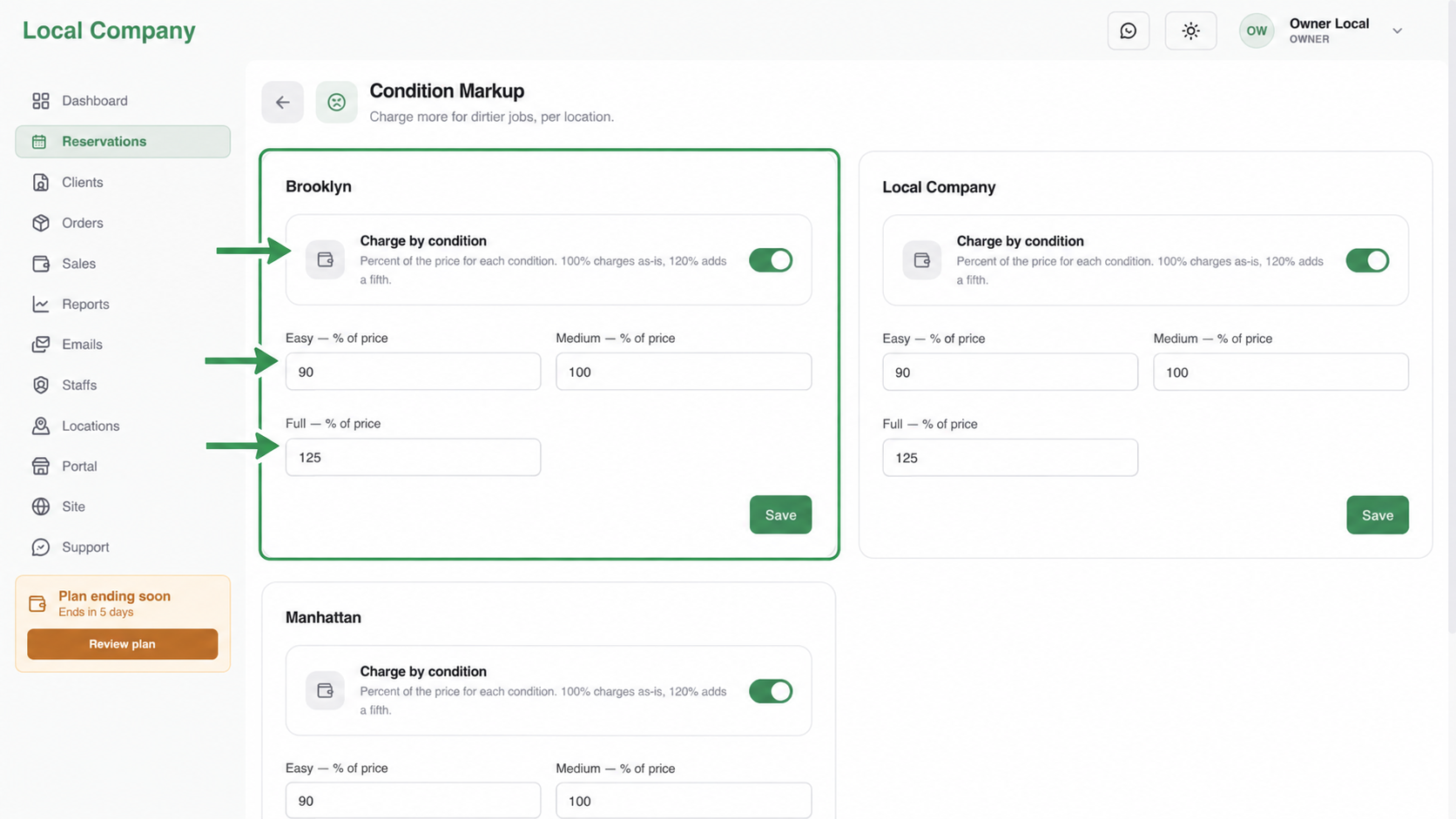
For each location, enable Charge by condition, then set the percentages for Easy, Medium, and Full. Keep 100% as the normal price. A value of 120% charges the base amount plus 20%; it does not mean a flat extra fee. Use higher percentages only for clearly defined extra effort, explain the levels in customer language, save the card, and test every level before publishing.
Not sure whether this is the right model? Start with Understand your pricing models.
Combine carefully
This model can be used alone or combined with property details, condition markup, packages, or individual services. Each enabled option should represent a real business decision the customer can understand.
Related pricing guides
- Understand how condition markup combines with pricing
- Use room counts as the base calculation
- Use square area as the base calculation
Verify the result
Make a test booking for the same location. Confirm the displayed total, selected options, and available end time. If the amount is right but the calendar is wrong, review minutes rather than changing the price.