The manager workspace is for daily operations after the owner has configured locations, pricing, services, and staff. Use it to review the calendar, keep jobs assigned to the right cleaner, handle customer changes, and resolve availability or team-request conflicts before they affect a visit.
This guide is for the person who runs the operating day. It starts after the owner has configured locations, hours, pricing, services, and staff. If the company is still being set up, use the owner quick start first.
1. Start in Reservations
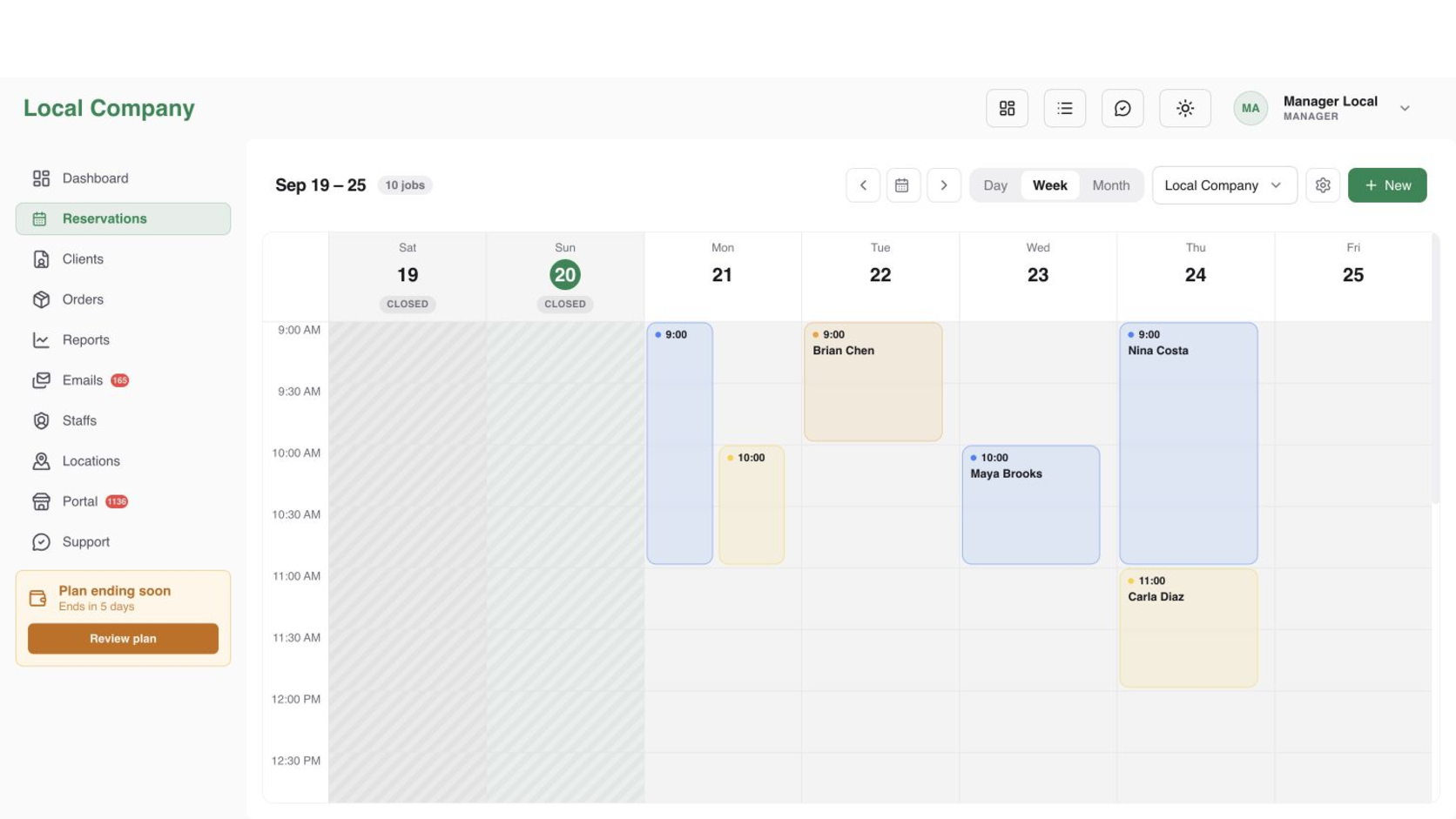
Open Reservations and choose the correct location from the outlet selector before making decisions. Use Week to check capacity across the branch, Day to dispatch the next visits, and Month to spot recurring demand. Closed days are shaded, so a job on a closed date or outside opening hours is a signal to investigate rather than a normal slot.
2. Triage the day before dispatch
Scan for new, unconfirmed, payment-pending, cancelled, and completed bookings. Check that every upcoming job has the correct location, time, service scope, and cleaner. Pay special attention to unassigned jobs, overlapping times, and a cleaner who has leave or another visit in the same window. The calendar is the operational source of truth; do not rely on a message or a separate spreadsheet.
3. Assign or reassign a cleaner
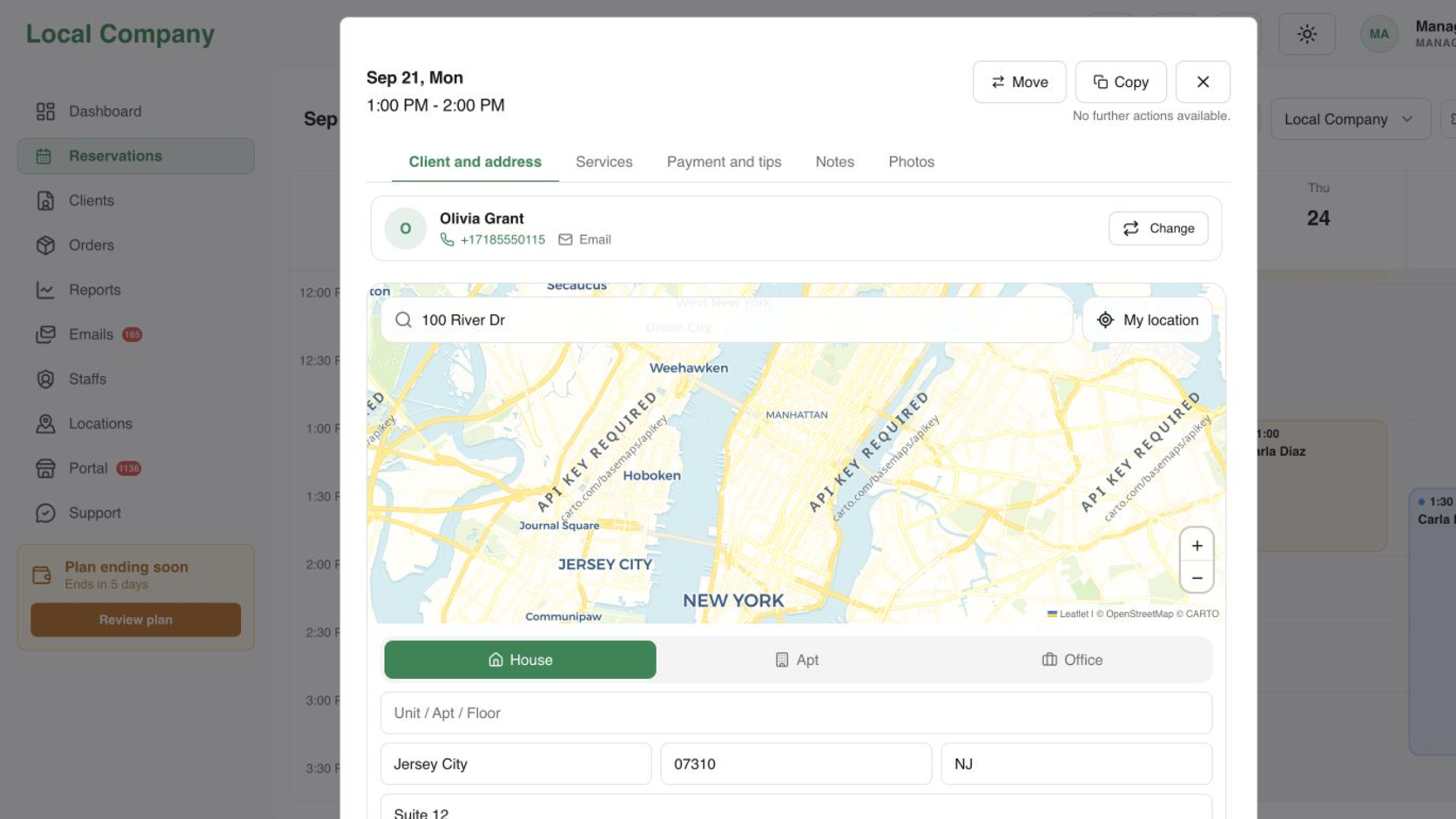
Open the reservation and choose a cleaner who is linked to the location and available for the full time window. Consider travel time and the cleaner’s existing jobs, not just an empty-looking cell. If a cleaner becomes unavailable, reassign the reservation, save the change, and return to the calendar to confirm that the new assignment and time are visible. If nobody is suitable, leave the booking clear for rescheduling and escalate the conflict to the owner instead of forcing an overlap.
4. Add a booking from a call or message
Select New from Reservations when the customer did not use the public portal. Choose the customer and location, enter the property details, select the configured service or package, and review the calculated duration and total before saving. Use the existing pricing model as the source of truth. Do not replace a calculated amount with a manual guess unless the owner has approved the exception and the reason is recorded.
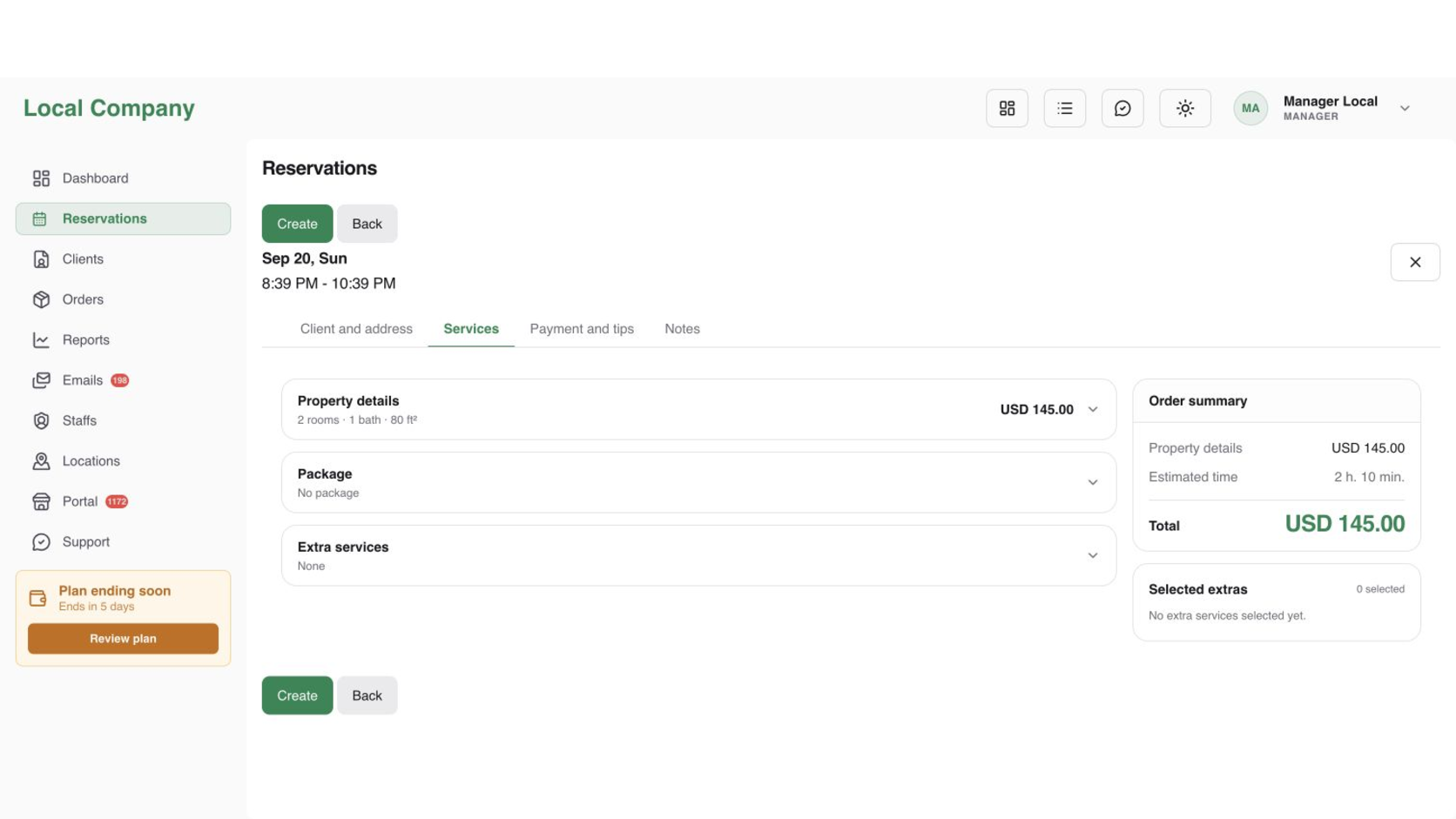
For the full field order, follow Create a reservation manually. The manager’s job is to verify the booking inputs and hand the cleaner a complete, conflict-free visit.
5. Reschedule or cancel without losing context
Open the existing reservation instead of creating a second booking. Preserve the customer, location, service scope, and notes, then choose a new slot that is open for the location and the assigned cleaner. After saving, check the calendar and tell the customer what changed. For a cancellation, use the reservation’s cancellation action and record the reason so the team can distinguish a customer change from an internal capacity problem. See Edit, reschedule, or cancel a reservation for the field-level sequence.
6. Review recurring work
Tidy24’s current customer-facing Repeat flow creates one new reservation at a time. It carries the previous address into the wizard, but the customer still reviews the property, services, current price, and a new available date. There is no automatic series or frequency schedule to approve in this flow.
Use Repeat a cleaning booking for the exact customer workflow. After each new booking is confirmed, review and assign it as a separate reservation.
7. Handle team requests before they become schedule problems
Open the staff request area when it is available to your role. Review leave, equipment, incident, and HR requests with their dates and status. Approve or reject only when the request is clear, then return to Reservations and check affected jobs. A submitted leave request is not the same as approved leave, but approved leave can make an existing assignment invalid and require reassignment.
When the calendar or price looks wrong
If no time is offered, check the location’s opening hours and breaks, time zone, booking limits, cleaner availability, service duration, and existing reservations. If the slot is valid but the amount is wrong, check the active pricing model, service price, property inputs, and condition or extra-service rules. Escalate changes to pricing, location hours, permissions, or portal configuration to the owner after recording the affected reservation.
Manager daily checklist
- Open the correct location and review today’s jobs.
- Confirm every upcoming reservation has a suitable cleaner.
- Check leave and other team requests before dispatch.
- Verify scope, duration, and total before adding a manual booking.
- Recheck the calendar after every reassignment or reschedule.
- Leave pricing and system-level changes to the owner.