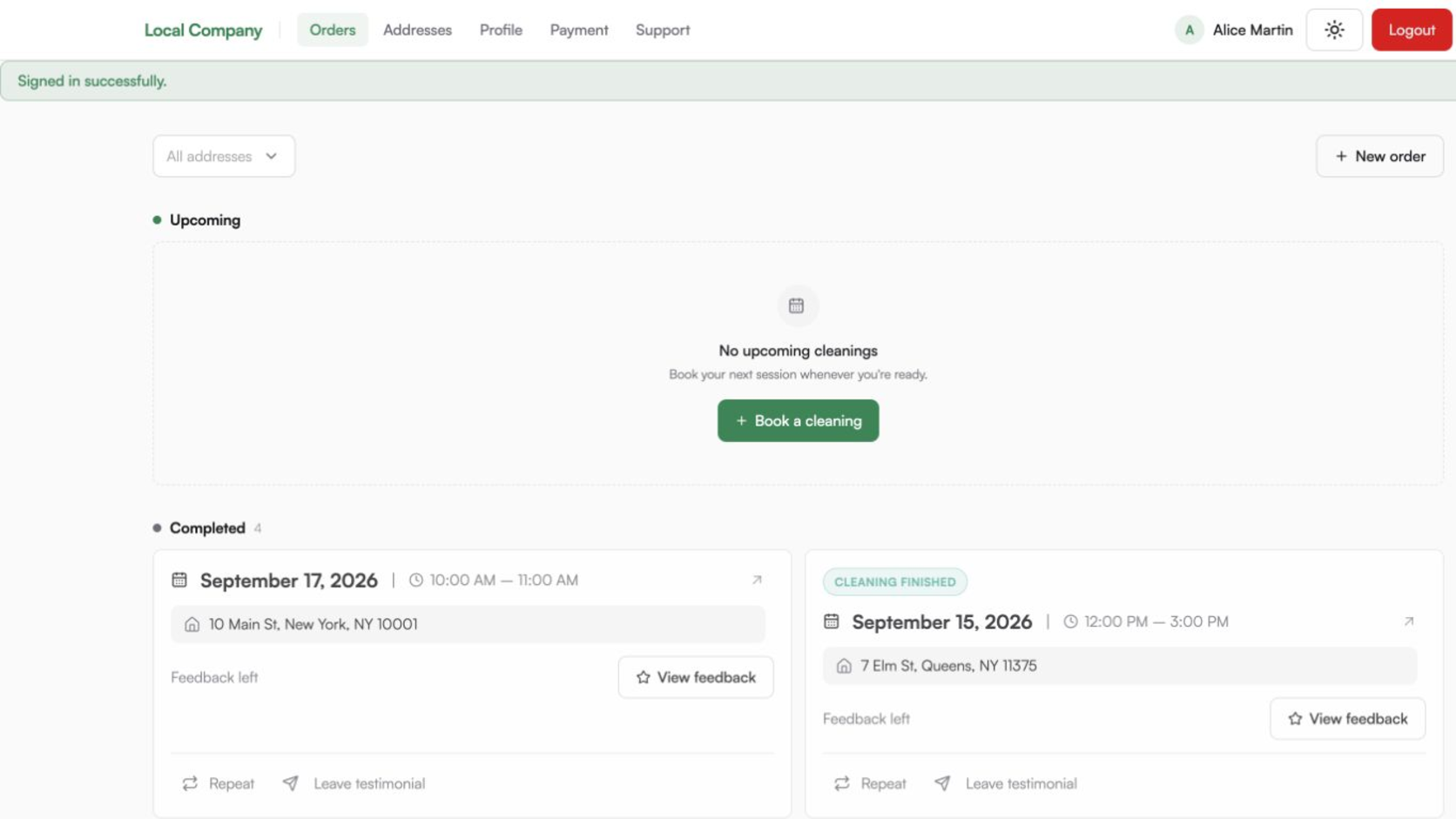
Tidy24’s current Repeat flow creates one new reservation at a time. It reopens the booking wizard with the previous address and signed-in customer context, but the customer still reviews the property, services, calculated price, and a new available date before submitting. There is no automatic series, frequency, or end-date field in this flow.
What Repeat does
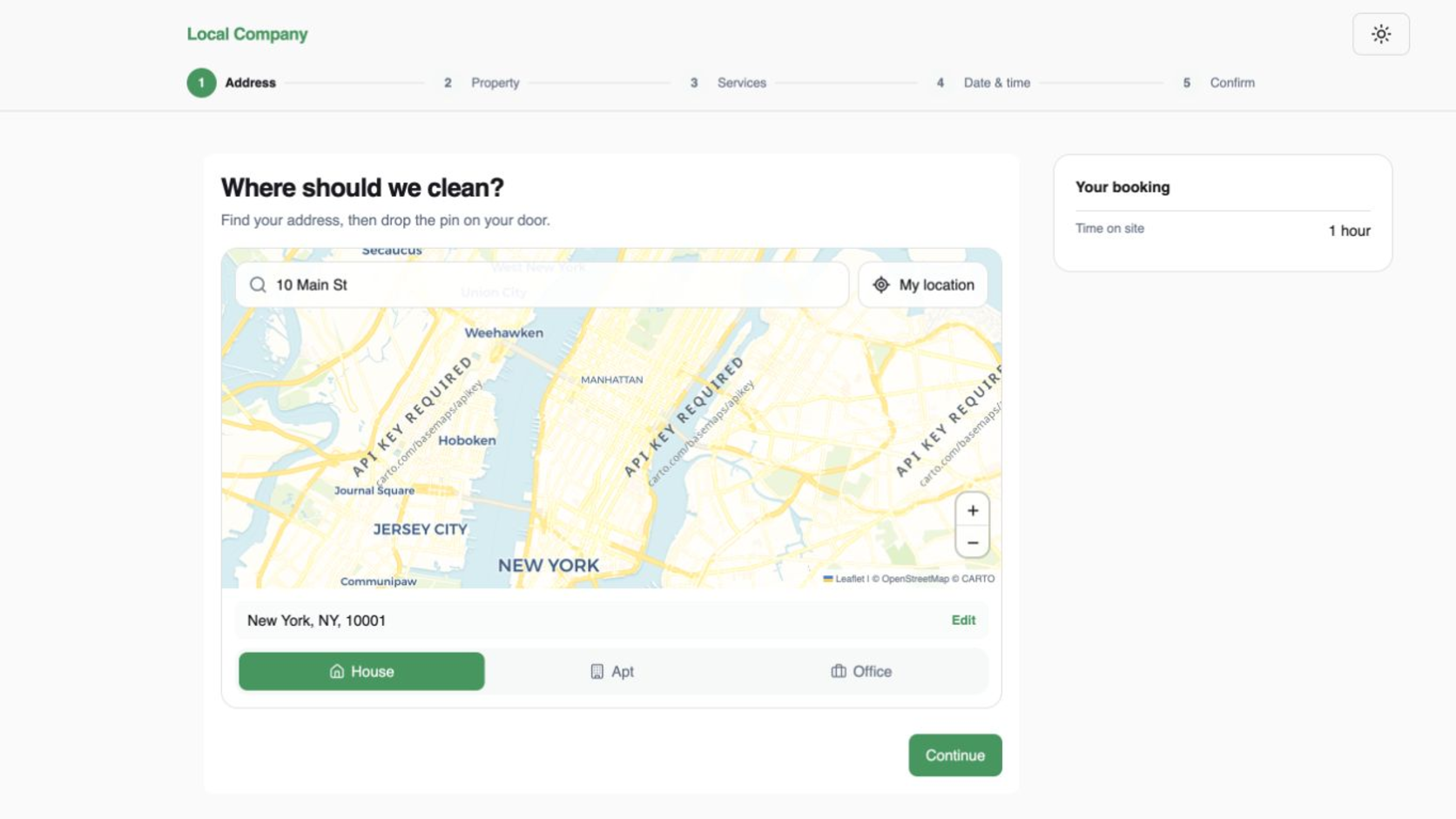
Repeat is a shortcut from an existing customer reservation to a fresh booking wizard. It carries the signed-in customer context and the previous address or property type into the new flow, so the customer does not have to start from an empty address form.
It does not create a recurring series, reserve future dates, or copy a final price without review. Every repeat ends as one separate reservation after the customer confirms it.
Repeat the booking step by step
- Open the customer profile. The customer signs in, opens Orders, and selects Repeat on the visit they want to book again.
- Check the address. The wizard opens on Address with the previous address and property type available. Confirm the map marker and correct anything that has changed before continuing.
- Review the property and services. Recheck rooms, bathrooms, size, condition, package, and optional services. These inputs are recalculated from the location’s current configuration, so the duration and amount may differ from the earlier visit.
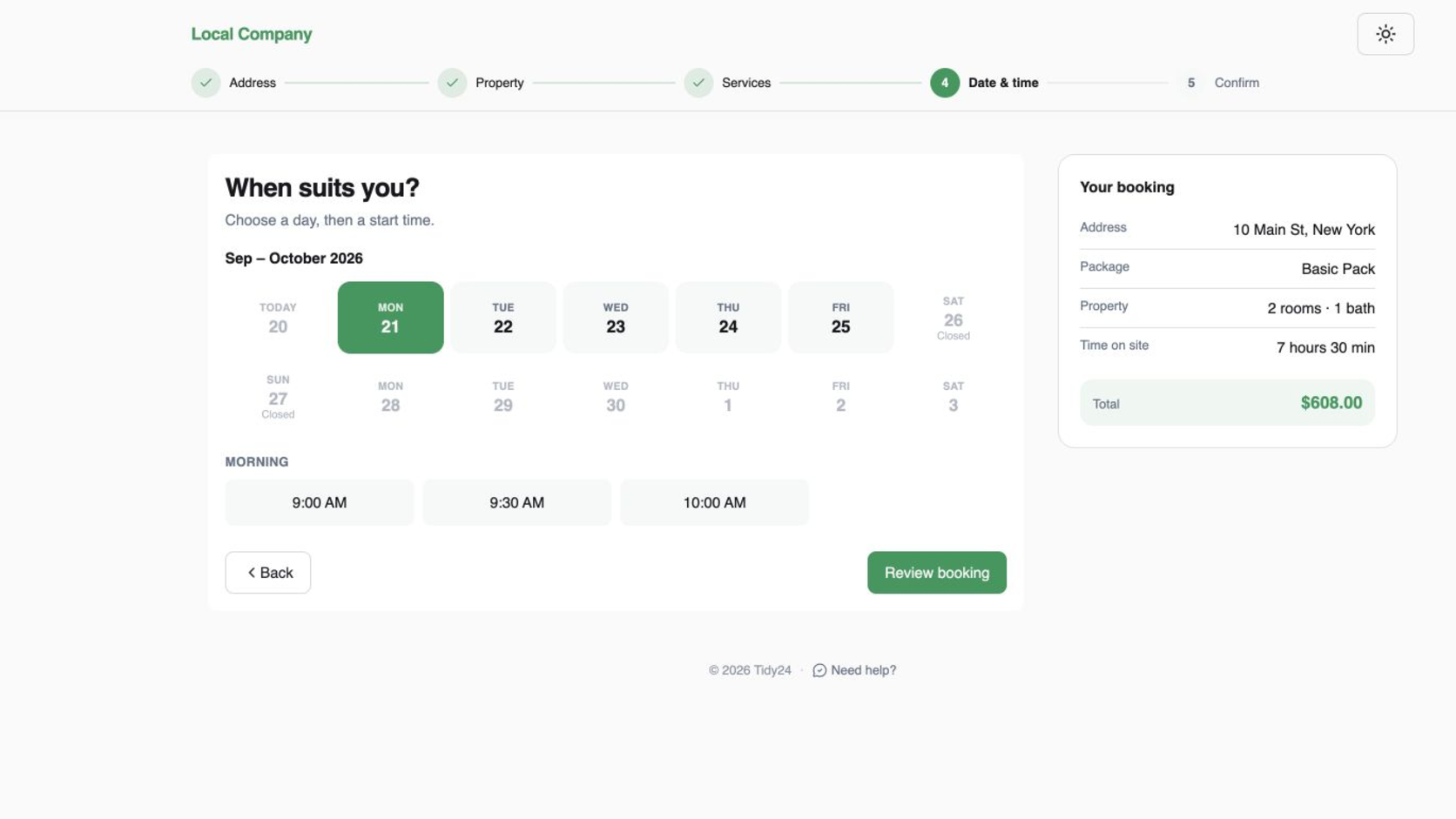
- Choose a new date and time. Select one currently available slot. Tidy24 recalculates availability from the location’s opening hours, closed days, breaks, booking limits, cleaner availability, existing reservations, and the current job duration.
- Review and confirm. The customer reviews the new total and submits the booking. Tidy24 saves one new reservation and leaves the original reservation unchanged.
What the manager should expect
Each repeated visit appears as its own reservation in Reservations. Review its status, calculated duration, price, location, and cleaner assignment like any other booking. Assign or reschedule the new reservation separately; changing it does not rewrite the original visit.
If a customer asks for weekly or bi-weekly visits, do not promise that Repeat will generate all future instances automatically. Use the flow for each requested visit, or arrange an assisted process with the company if a larger set of bookings needs to be created.
Verify the result
After confirmation, check the new reservation in the company calendar and compare the date, time, customer, address, service scope, duration, and total with the customer’s request. If the available date or price is unexpected, correct the source location, pricing, or availability setting before creating another booking.