A cleaner should review assigned reservations, location and customer details, scheduled time, service notes, and any changes before starting work. The company manager controls the broader pricing and scheduling settings; the cleaner’s focus is completing the assigned visit accurately.
Know the cleaner portal layout
The cleaner portal is a focused workspace for assigned visits. The top navigation contains Schedule, Workplace, and Reports. Your profile name, theme switcher, and Logout action are also available in the header. What appears inside each area depends on the options your company enabled for the cleaner portal.
Use the Schedule screen
Start on Schedule. The page separates work into Tomorrow, Coming up, and Completed. Use Tomorrow to prepare for the next day, Coming up to scan the next assigned visits, and Completed to reopen recent work. A schedule card can show the date, start and end time, duration, customer, address, property measurements, rooms, bathrooms, package, and selected extras.
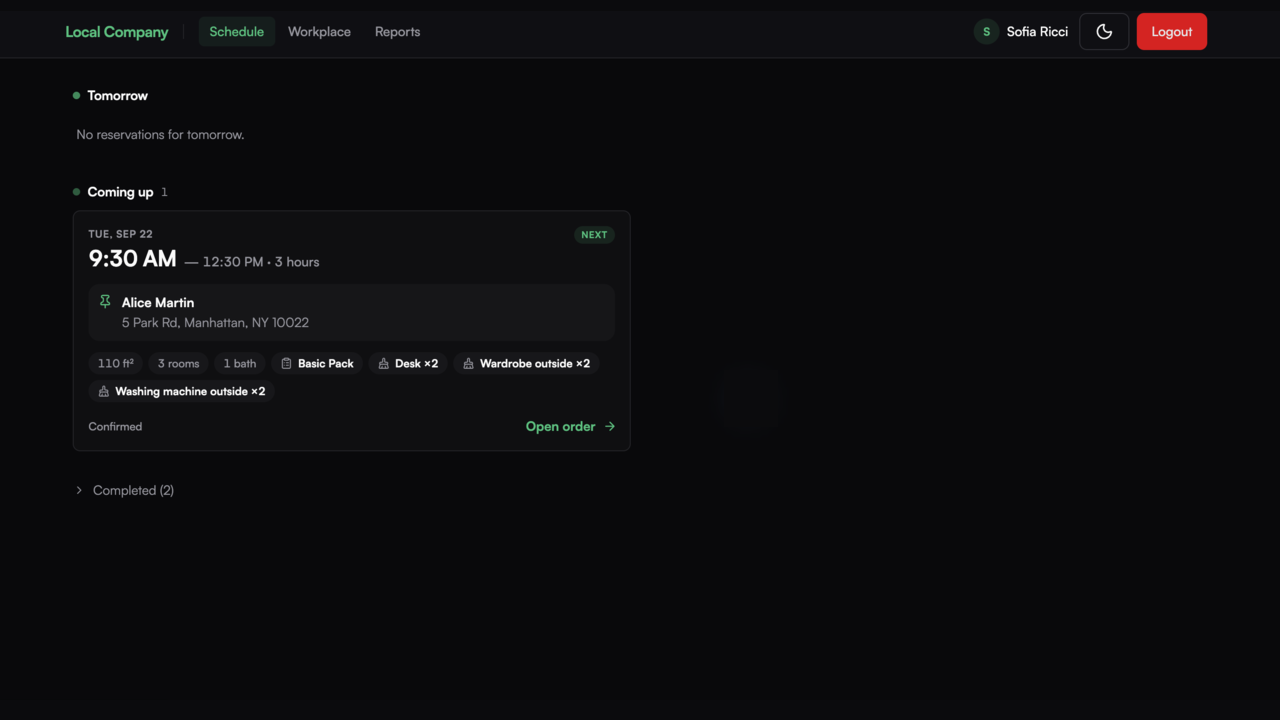
Open an upcoming order
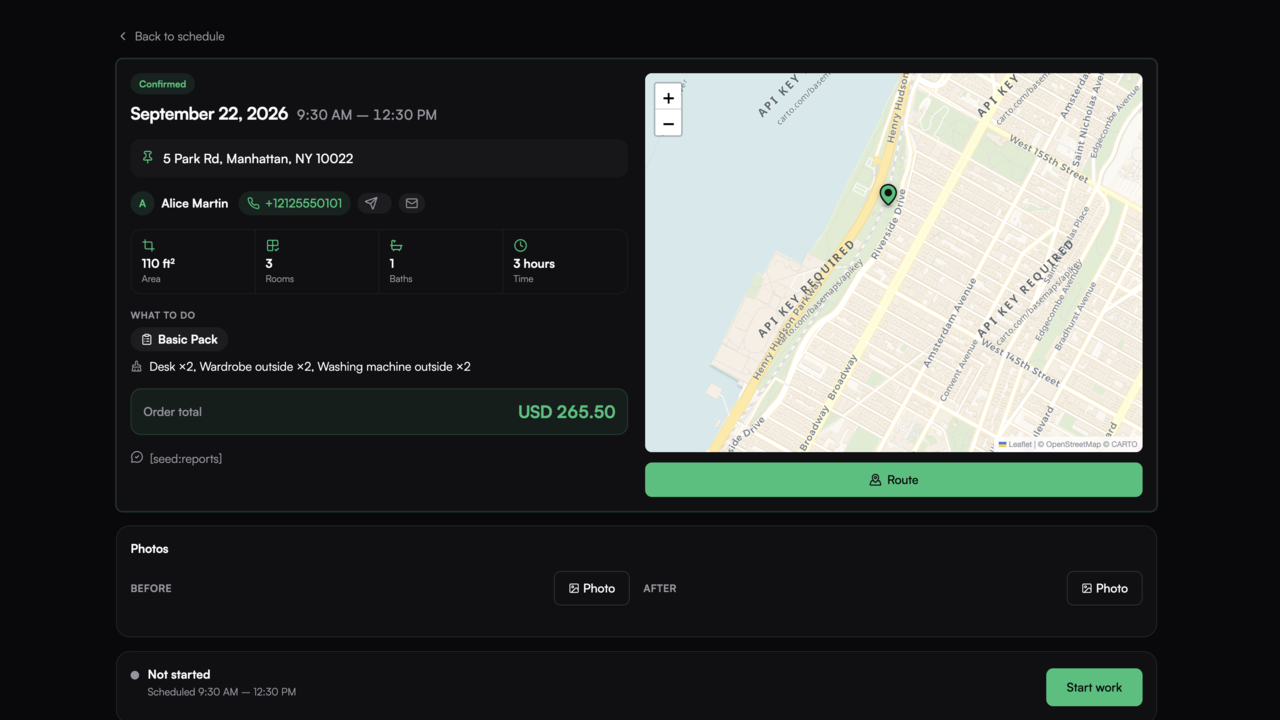
Open the reservation card to see the full work order. Read the date, time window, status, address, customer, and service scope before travelling. The detail page can show area, rooms, bathrooms, estimated time, package, individual extras, notes, order total, map, route actions, and the before/after photo area. These values are the visit brief that the manager and customer used when the booking was created.
Use Route and start navigation
Wait until the map finishes loading and the marker is visible, then compare it with the written address. Select Route to open the navigation menu. Tidy24 supports three route choices: Google Maps, Waze, and Apple Maps. Each option opens in a new tab or app using the booking address; when coordinates are available, Waze uses them for a more precise destination. Choose the navigator you normally use for traffic, offline maps, or turn-by-turn guidance.
The map inside Tidy24 is an address check, not a replacement for navigation instructions. If the marker and written address do not agree, stop before leaving and contact the manager. Do not guess a destination or start work at an unverified address.
Contact the customer before arrival
Use the phone, message, or email actions beside the customer name when access details, parking instructions, entry codes, or arrival timing are unclear. Confirm only the information needed for the visit and keep the order open so you can recheck the scheduled window and service scope. If the customer asks to change the work, record the request through the manager instead of silently changing the order.
Read the work scope and pricing inputs
The property facts show the inputs used for this visit, such as square area, room count, bathroom count, and estimated time. What to do lists the selected package and individual extras, for example a Basic Pack or an appliance task with a quantity. Notes may include customer comments or internal instructions when the company has enabled them. The displayed total is a reference for the booked scope; a cleaner should not promise a different price to the customer.
Use before and after photos
The order can include separate Before and After photo areas. Add clear photos from the property when the workflow requests them, and use the correct section so the record remains understandable. Upload and delete controls are permission-based. Some locations require a before photo before the cleaner can finish the job, so take that photo before leaving the property.
Track the visit from start to finish
When you arrive and are ready to begin, select Start work. The order then records the on-site start time and shows the active work state. When the cleaning is finished, choose Cleaned and review the confirmation screen. If the actual service differs from the booked scope and editing is enabled, correct the rooms, bathrooms, area, time pack, or extras before confirming.
After the work is confirmed, the portal can show a payment or completion action depending on the location settings. Selecting Mark paid closes the cleaner workflow and moves the reservation to Completed. The commercial booking status remains controlled by the company rules, so use the portal buttons rather than changing details outside the order.
Understand order statuses
Confirmed means the visit is scheduled and ready to prepare. The job tracker can then show Not started, On site, or Done as the cleaner records progress. A booking can also have a commercial status such as Scheduled, Awaiting payment, Completed, or Cancelled. These are different concepts: the job tracker records the cleaner’s work, while the booking status reflects the company’s reservation and payment workflow.
What the cleaner can do
- Scan Tomorrow, Coming up, and Completed work.
- Open an order and review address, customer, scope, time, package, extras, notes, and total.
- Use the map and choose Google Maps, Waze, or Apple Maps for navigation.
- Call, message, or email the customer when arrival information is missing.
- Start work, confirm what was actually cleaned, and finish the job when tracking is enabled.
- Add before and after photos, and remove them only when the portal permission allows it.
- Edit selected property or service inputs only when the location explicitly enables cleaner editing.
- Review completed orders and the work history.
Use the other portal sections
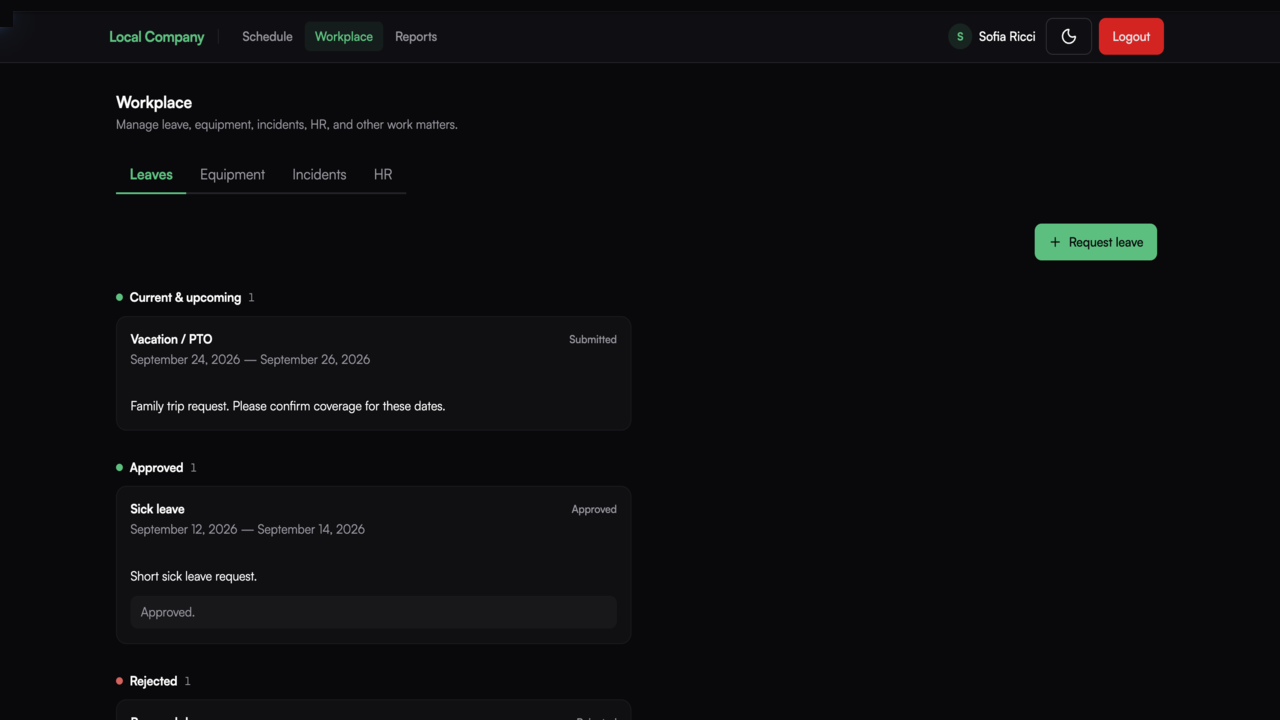
Workplace is for non-booking work matters. Its tabs can include Leaves, Equipment, Incidents, and HR. In Leaves, review current and upcoming requests or choose Request leave when the company has enabled it. Equipment, incident, and HR tabs contain the forms or instructions your company has made available.
Reports gives a performance snapshot, not a replacement for the schedule. It can show Jobs completed, Upcoming jobs, Average feedback, and Retention rate, with the period and comparison shown on each card. Use it to understand your workload and feedback, while using Schedule for the actual visit details.
What the portal does not change
The cleaner portal does not replace the manager’s company settings. Depending on permissions, a cleaner may be unable to change the customer, assigned staff member, date, time, discount, commercial status, or pricing rules. If a customer requests a reschedule, a new price, or a different service, send the request to the manager and wait for the updated reservation.
Cleaner checklist
- Check Tomorrow and Coming up before the workday.
- Open each order and verify time, address, contact, and scope.
- Use the route and contact actions when needed.
- Start work from the correct reservation.
- Use the photo section and review the order in Completed afterward.