Your location is the starting point for online booking. It tells the system where your business operates, which time zone the schedule follows, and when customers are allowed to book.
Before you begin
Have the following information ready:
- Your public business name, email address, and phone number.
- The address used as the base for this location.
- Your regular opening and closing times for each day of the week.
- Any regular breaks when bookings should not be available.
1. Open the location settings
From the company dashboard, open Locations and select your first location. New cleaning companies can also use the location step in the setup checklist on the dashboard.
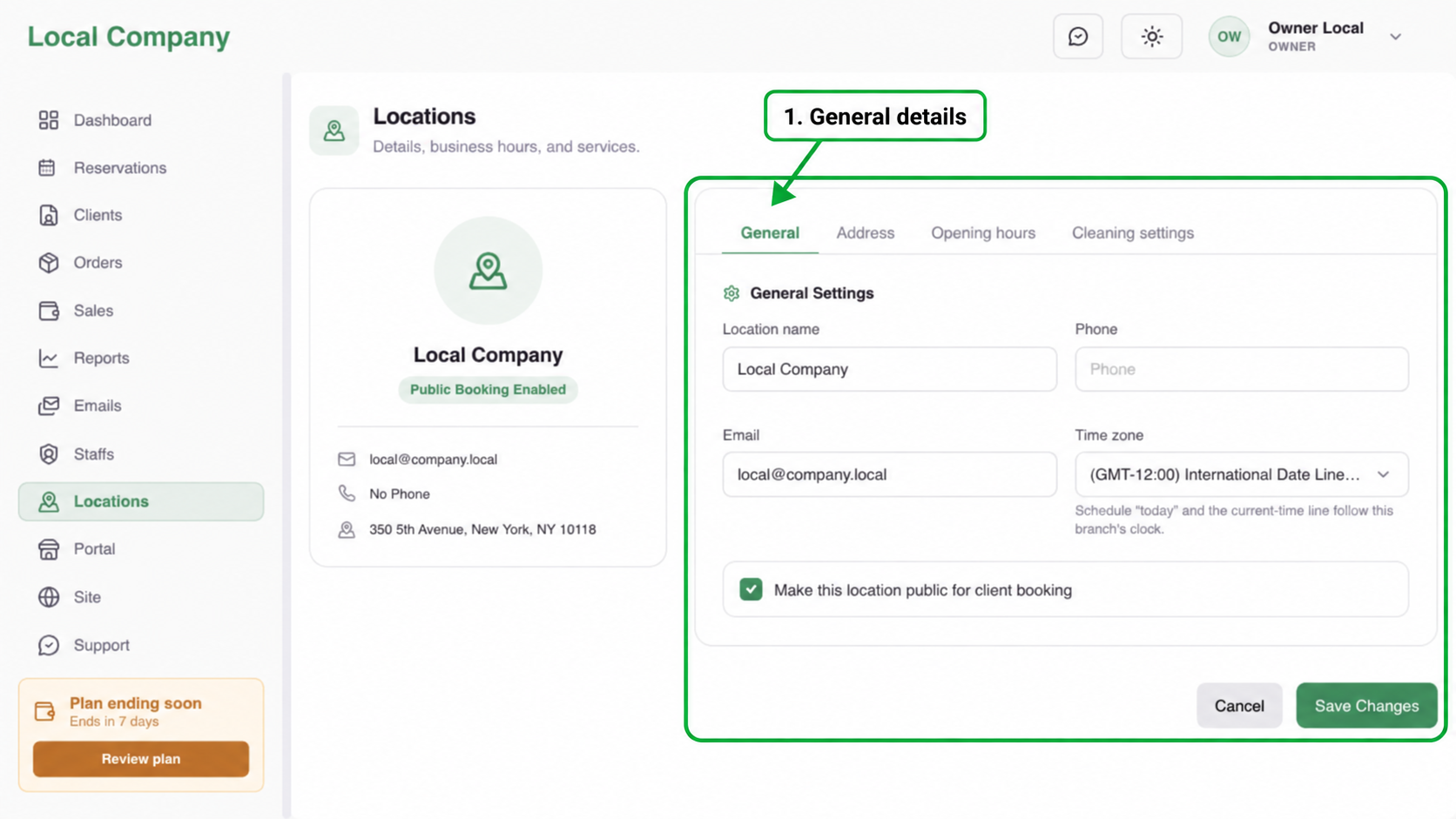
2. Check the general details
On the General tab, enter a clear location name and the contact details customers should use.
Select the correct time zone. The booking calendar, the current-time indicator, and date-based scheduling rules follow the location’s time zone.
Enable public booking when this location should be available to customers. You can leave it disabled while you finish the rest of the setup.
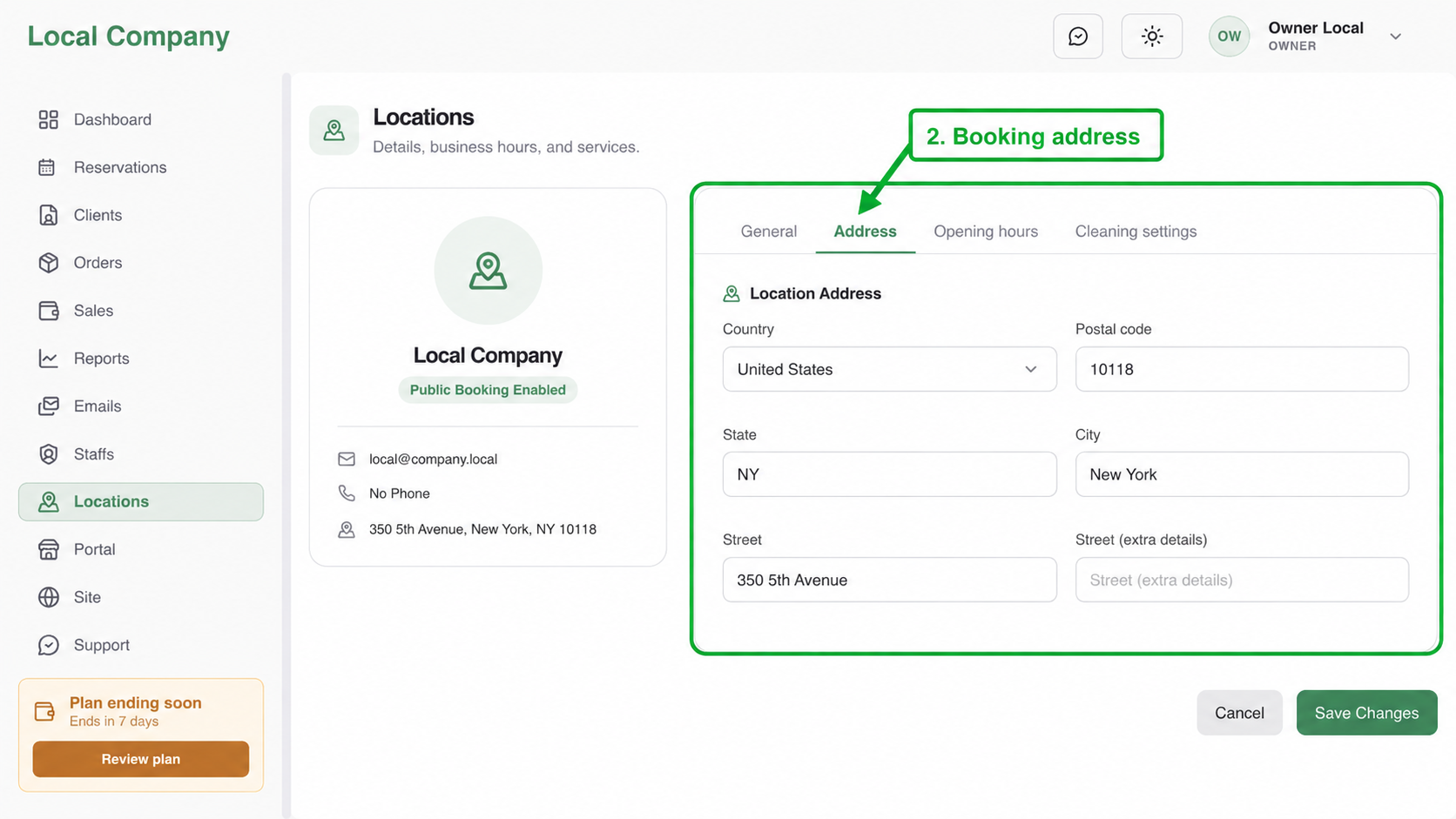
3. Add the booking address
Open the Address tab and enter the country, postal code, state or region, city, and street address.
Use a complete and accurate address. It acts as the location’s base address and may be used by service-area and scheduling features.
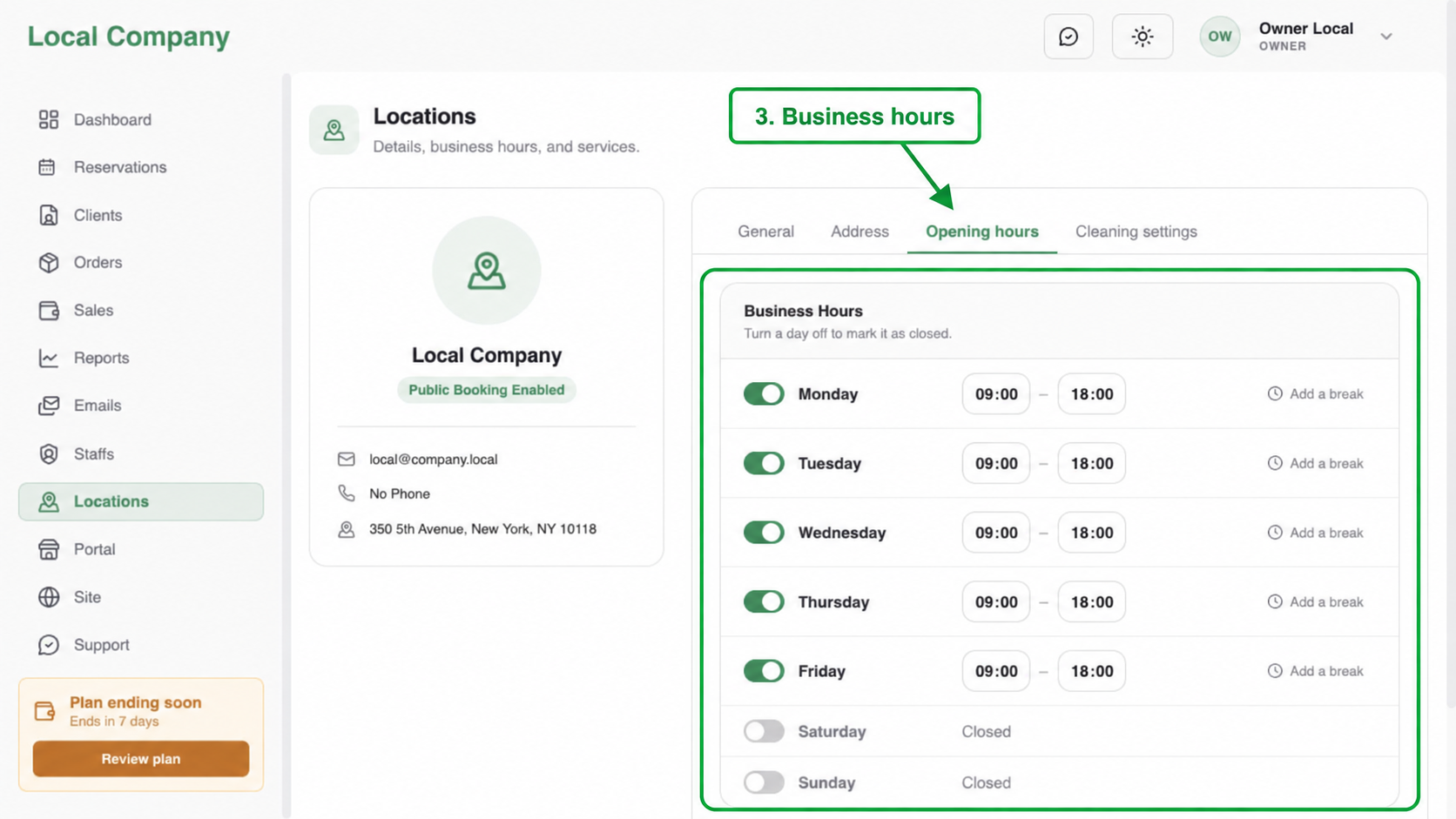
4. Set the weekly business hours
Open the Opening hours tab. For every day of the week:
- Mark the day open or closed.
- For an open day, enter the opening and closing times.
- Add a break if bookings should be unavailable during part of the day.
Closed days are excluded from customer availability. Business hours define the outer booking window; employee availability and existing reservations can reduce the available times further.
5. Save and verify
Select Save Changes. Return to the location if necessary and confirm that the address and opening hours are still displayed correctly.
When your services, prices, and at least one cleaner are also configured, open the booking portal and make a test booking. This is the quickest way to confirm that customers see the expected dates and times.
If no booking times appear
- Confirm that the selected day is open and has valid opening and closing times.
- Check that the location uses the correct time zone.
- Make sure at least one eligible employee is available.
- Check for existing reservations, holidays, and advance-booking restrictions.
- Confirm that the required cleaning services and pricing settings are active.
Next step
After the location is ready, configure your pricing model and add the first cleaner. These settings are required before the booking portal can offer reliable availability.